
This is how guest calibration works
-
Open the NUIA menu
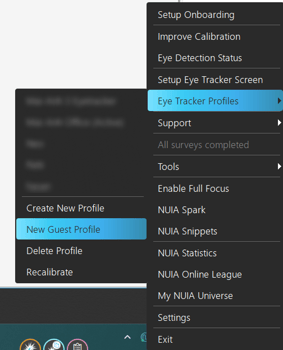
Open the NUIA menu in the right section of the taskbar and go to "Eye Tracker Profile"
-
Start guest calibration
- The first time: Select the "New Guest Profile". Calibration will now start automatically, and the test user will be guided through the process.
-
In further tests, if necessary, select the "Guest" profile again and then click on "Recalibrate" in the same menu to restart the calibration process.
-
Try out NUIA gaze control
Once the calibration is complete, you can see the precision of the calibration in the following window. If the calibration was successful, you can close the window and begin experimenting with the NUIA gaze control right away.
Wichtige Hinweise zur Gast-Kalibrierung
-
Calibration Precision
Guest calibration allows for quick setup. Please note that the precision, especially at the edges of the screen, may be less accurate than you’re used to. If you have been using NUIA for some time, the precision has been continuously improved in the background since your initial (standard) calibration.
-
Conducting the Calibration
At the beginning of the calibration, please remind the test user to focus on the black dot and to move their head naturally. They should look at the black dot normally, without trying to fixate on it. During the calibration, try to minimize any additional communication, as people tend to look at someone out of politeness during a conversation, which could negatively affect the calibration.
-
Your Settings Remain Active
When using guest calibration, your individual settings remain active. This means that automatically responding NUIA functions may cause confusion. Therefore, we recommend closely monitoring the test and providing usage guidance.
Optimal Short Test of NUIA Eye Control
To make a positive first impression of NUIA, we recommend that the test user try out the following three features:
-
Auto Gaze Selectors
- Open a program, such as Windows Explorer (keyboard shortcut: "Windows + E").
- Click once on the "Maximize" button in the upper right corner, and then click the same button again to restore the window after maximizing it. Move the mouse pointer to another spot afterward, as leaving it in place might prevent the automatic gaze interactions from being triggered.
- The test user should now focus on the "Maximize" button to activate the Auto Gaze Selectors. Then, they should follow the path from the "Maximize" button to the circle to trigger the button and maximize the window.
- Next, look at the "Minimize" button and use the gaze on the circle to minimize the window.
- Finally, they can look at the "Close" button and close the window using the corresponding circle.
- Smart Teleport
- Go to the desktop (keyboard shortcut: "Windows + D") and click once on an icon to ensure that the desktop is in focus.
- The test user should now gaze at another icon and move the mouse in that direction until "Smart Teleport" is triggered. They can repeat this action multiple times to get a feel for how far to move the mouse so that the pointer precisely jumps to the desired icon.
- Please note that there is a circular "rest area" around the mouse pointer where no teleportation occurs.
-
- Open a Browser, such as your company's website.
- The test user should now gaze at a link, button, or image to trigger the corresponding element with NUIA Click. It's important that they keep the NUIA Click button pressed down and only release it when the small circle is positioned correctly. While holding the button down, they can make slight head movements to adjust the selection precisely. Explain this process to them, and if necessary, demonstrate these head movements on yourself to illustrate how to fine-tune the NUIA Click.
- Ensure that the elements to be clicked are large enough to allow for precise selection during this initial short test.
NUIA Click
Conclusion
It’s important to note that guest calibration does not facilitate a transition into regular use in everyday work, for several reasons:
-
First, the regular calibration is already more precise from the start, especially in the edge cases.
-
Additionally, the ongoing precision optimization that occurs in the background plays a crucial role in individual adaptation.
-
Furthermore, the NUIA onboardings you have already completed are essential for developing a comprehensive understanding of NUIA’s functionalities.
To gain a solid grasp of how to use NUIA and understand its potential applications in your daily work, we recommend using NUIA for at least three to four weeks.
However, guest calibration offers a great opportunity to quickly and easily dive into NUIA’s gaze control and get your first impression of it.